How to Create a Survey Online: Complete Step-by-Step Guide
Learn how to create an effective online survey using our platform. Step-by-step guide covering AI-powered survey generation and manual survey creation methods.
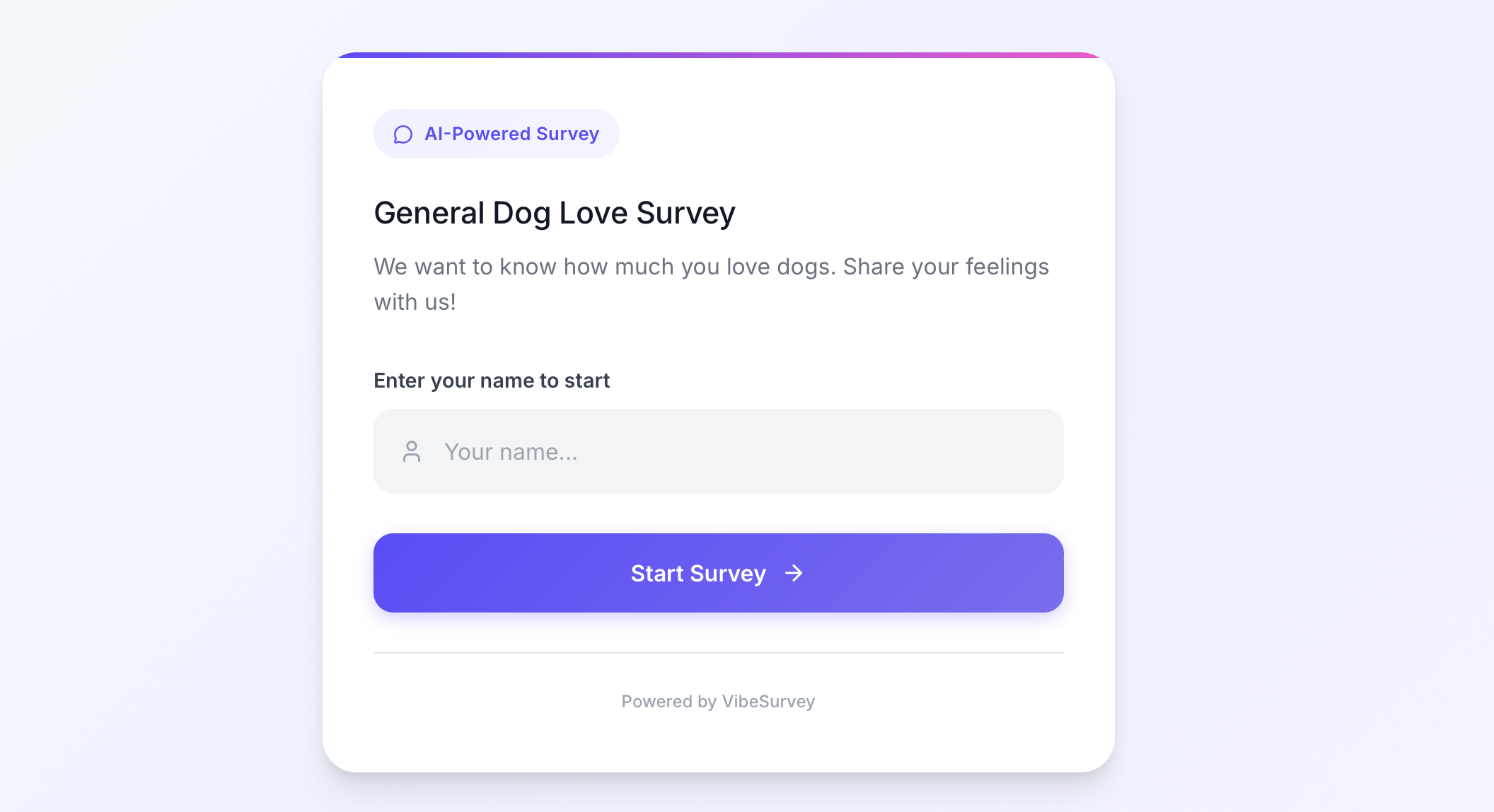
Creating an effective online survey is essential for gathering high-quality insights, understanding your audience, and supporting research or product decisions. This guide explains how to create a survey on our platform step-by-step, whether you want to use our AI survey generator or build a questionnaire manually.
The article also highlights key platform features, helping new users understand the full capabilities of our survey creation tool.
Why Use Our Online Survey Builder?
Our platform is designed for anyone who needs fast, structured feedback — product managers, researchers, marketers, HR teams, consultants, and founders. Unlike traditional form builders, the platform includes:
- AI-powered survey generation based on your research goal
- A simple manual editor for custom questionnaires
- Clean, user-friendly interface
- Flexible question types
- Instant sharing and real-time response collection
By combining automation with manual control, you can create surveys that match your exact research needs in minutes.
1. Getting Started: How to Create a Survey
To begin building your survey, open your dashboard and click "Create Survey."
This will take you into the survey-creation workspace — the central place where you can choose the creation method, add questions, and configure your workflow.
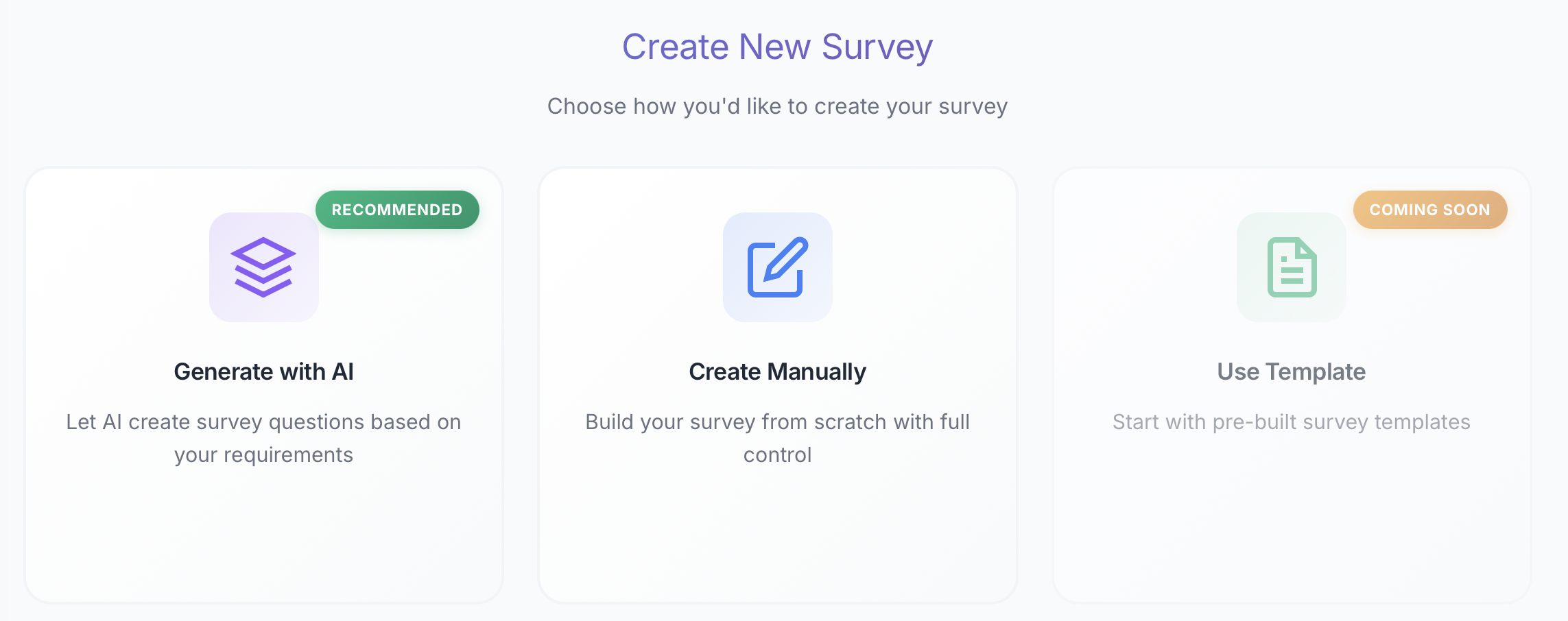
Our platform supports two main survey creation modes: AI-generated survey creation and Manual survey creation. Both methods are optimized for speed and clarity.
2. Create a Survey Using AI (AI Survey Generator)
If you want to save time or need help structuring your questionnaire, choose "Create with AI."
This option uses our built-in AI survey builder, which automatically generates a logical set of questions based on your inputs. This makes the platform ideal for rapid research, customer discovery, usability testing, or exploratory surveys.
2.1 Fill Out the Setup Form (AI Mode)
When you choose Create with AI, the platform opens a structured setup form. These fields help the AI survey generator understand your goals and produce highly relevant, well-organized survey questions.
🎯a. Agent Context (Required)
This field defines the background the AI will rely on during the conversation with respondents.
It sets the tone, vocabulary, and domain knowledge the Agent uses, ensuring that clarifying questions feel natural and aligned with your organization.
📊b. Survey Goal (Required)
Describe the main purpose of your research.
A clear goal allows the AI to create a logical question flow optimized for discovery, evaluation, or feedback collection.
👥c. Target Audience
Specify who will be taking the survey.
The AI adapts language complexity, tone, and question framing to match your target users.
✨d. Additional Focus (Optional)
Use this field to emphasize specific themes you want the survey to explore.
This ensures the questionnaire includes the nuances needed for deeper insights.
2.2 Review and Edit the AI-Generated Questions
After completing the setup form, the platform automatically generates a full list of survey questions based on your inputs.
At this stage, you can:
- Review every question
- Edit wording for clarity or tone
- Remove questions you don't need
- Add your own questions manually
This step ensures that your final questionnaire reflects both AI intelligence and your expertise.
Once the questions look right, proceed to Additional Settings, where you can fine-tune how the AI Agent interacts with respondents.
2.3 Configure Additional Settings
The next screen gives you control over how the AI conducts the survey conversation. These settings influence follow-up depth, relevance filtering, and communication style.
The interface includes:
Maximum Clarifying Questions
A slider that lets you define how many follow-up questions the AI may ask for each main question. Options range from:
- •Minimal (1) — short, concise
- •Balanced (2) — default and recommended
- •Deep (3)
- •Very Deep (4) — detailed, exploratory interviews
Although you set a maximum, the AI dynamically adapts to respondent engagement.
Allow Skipping Irrelevant Questions
When enabled, the Agent automatically skips questions that don't apply to the respondent based on previous answers.
This improves the respondent experience and reduces completion time.
Agent Communication Style
Choose how the AI speaks with respondents. Options include:
- •Professional — structured, respectful, business-like
- •Friendly — warm, supportive, personable
- •Casual — conversational and relaxed
- •Empathetic — caring, attentive, emotionally aware
These styles allow you to match the survey tone to your brand or research context.
2.4 Automatic Title and Description Generation
Once you complete the additional settings, the platform automatically generates:
- A survey title
- A short description
These elements appear on the welcome screen for respondents and help them understand the purpose of the survey.
Both the title and description are fully editable — you can adjust tone, add context, or insert specific instructions to better prepare respondents.
3. Create a Survey Manually (Manual Survey Editor)
For users who prefer to craft surveys by hand, our manual survey builder provides a clean, distraction-free environment.
This mode is ideal for teams with predefined questionnaires, structured methodologies, or strict research protocols.
3.1 Adding Questions
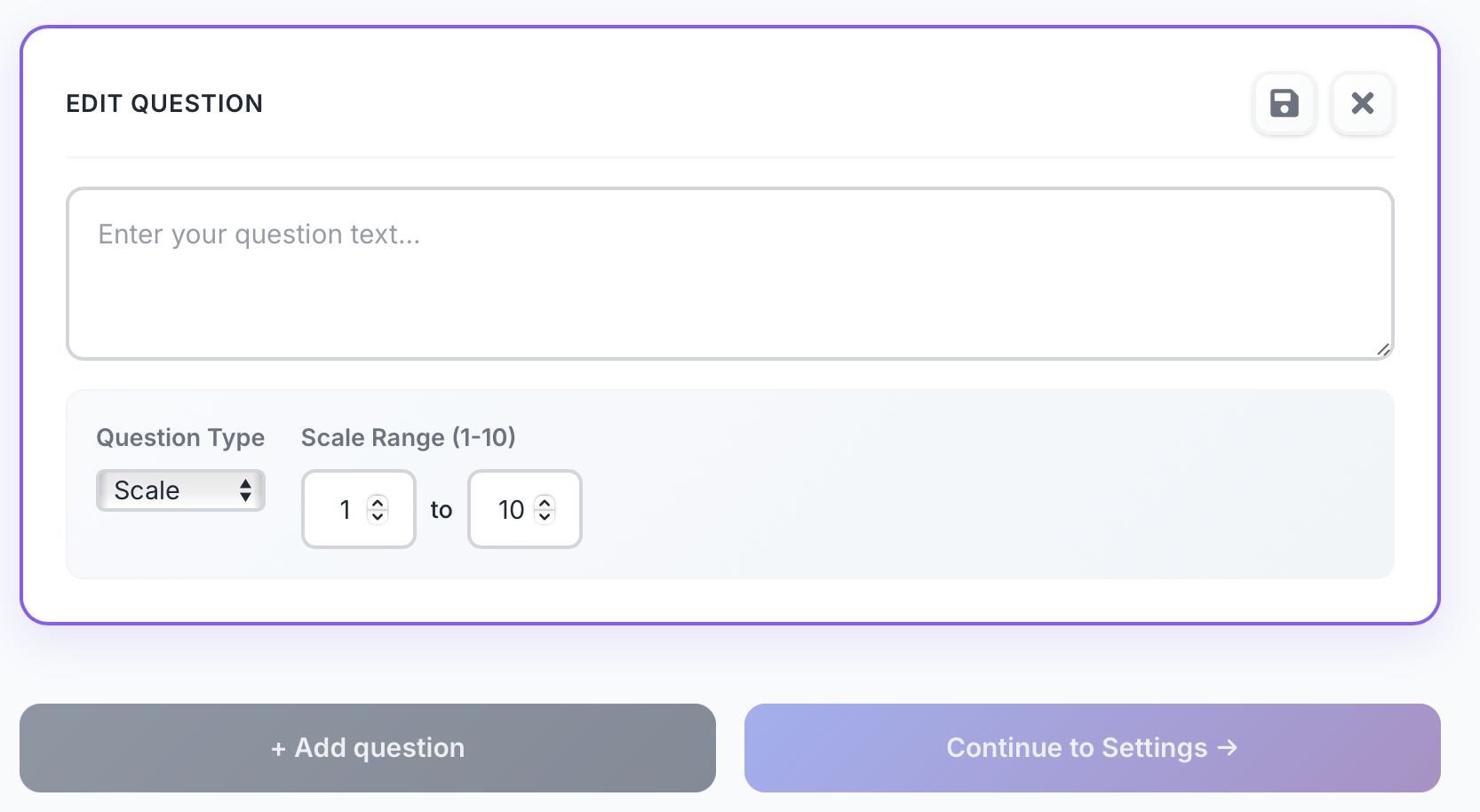
Click "Add Question." You'll see available question types optimized for common research scenarios:
Multiple Choice Questions
Perfect for structured responses, quantitative comparisons, and classification.
Rating Scale Questions
Useful for scoring satisfaction, importance, agreement, or performance.
Open-Ended Questions
Best for collecting rich qualitative insights, user stories, and detailed explanations.
Each question type is easy to configure — just enter your text, add options (when applicable), and save.
3.2 Reordering and Editing Questions
- Drag questions to change their order
- Click edit to adjust wording or options
- Delete unnecessary questions with one click
All changes save instantly, ensuring a smooth, uninterrupted workflow.
3.3 Additional Settings for Manual Surveys
Just like in AI-generated mode, manually created surveys also include Additional Settings that control how the AI Agent interacts with respondents during the survey.
These settings appear after you finish adding your questions.
Instead of duplicating the full explanation here, see the detailed descriptions in the section:
-> "2.3 Configure Additional Settings"
This section covers:
- Maximum Clarifying Questions
- Allow Skipping Irrelevant Questions
- Agent Communication Style
All these settings function identically whether your survey was created manually or generated by AI.
3.4 Automatic Title and Description for Manual Surveys
After you complete your question list and adjust the Additional Settings, the platform automatically generates:
- A survey title, and
- A short survey description
These elements appear on the respondent-facing welcome screen and help set expectations for the survey.
As with AI-generated surveys, both the title and description can be freely edited. You can refine the tone, add context, or include instructions for respondents to improve clarity and response quality.
4. Publishing and Sharing Your Survey
Once you're satisfied with your survey, navigate to your survey card in the dashboard. Click the three dots (•••) on the right side of the survey card, then select "Launch."
After launching, the survey status will change, and the platform will generate a unique survey URL. To copy the link, click the three dots (•••) again and select "Copy link." You can then distribute the URL via:
- Social networks
- Messengers
- Internal company tools
Your survey will be instantly accessible, and responses will start appearing in real time.

5. Analyze Survey Responses
After your survey is live, you can access results in the analytics dashboard.
The platform allows you to:
- View individual responses
- Analyze aggregated metrics
- Interpret qualitative feedback
- Export data for deeper research or reporting
This makes the platform not only a survey builder but a complete research tool that supports both data collection and analysis.
Conclusion: A Modern, Fast Way to Create Surveys Online
Whether you're conducting product research, customer interviews, UX testing, HR assessments, or market analysis, our platform provides a powerful yet easy-to-use solution.
With a combination of AI-powered survey generation and a flexible manual editor, you can build high-quality surveys that deliver meaningful insights — without spending hours on preparation.
Ready to create your first survey?
VibeSurvey helps you design, deploy, and analyze surveys that get results. Start building smarter surveys today.